What to verify in your campaign video workflow before going live
Moving from concept to final cut
Every brand team knows the feeling: a campaign video that looked right in the edit suddenly feels flat on a social feed or a homepage. The difference between a piece that lands and one that fades is rarely a single creative decision. It is the small checks made along the way, from the first visual brief to the final export. When generative tools enter the mix, those checks multiply because the speed of iteration can outpace the rigour that keeps a campaign coherent.
This article lays out what to flag before you lock a cut. It is written for teams using AI video generators, but most of the points apply whether your footage comes from a studio shoot or a prompt. The goal is to catch mismatches early, when fixing them costs minutes rather than a full re-render.
Brand guideline alignment inside the prompt
A generative tool does not know your brand guideline unless you tell it. If your brand uses a specific colour palette, a particular typeface for on-screen text, or a consistent mood across all social video, those details need to be in the prompt or in a reference image you upload. Treat the prompt as a visual brief for a contractor: be explicit about what should appear and what should never appear. Check that the output does not introduce textures, lighting styles, or colour grades that drift from your established look. A single frame that feels off-brand can dilute a campaign concept that took months to develop.
Storyboard versus output coherence
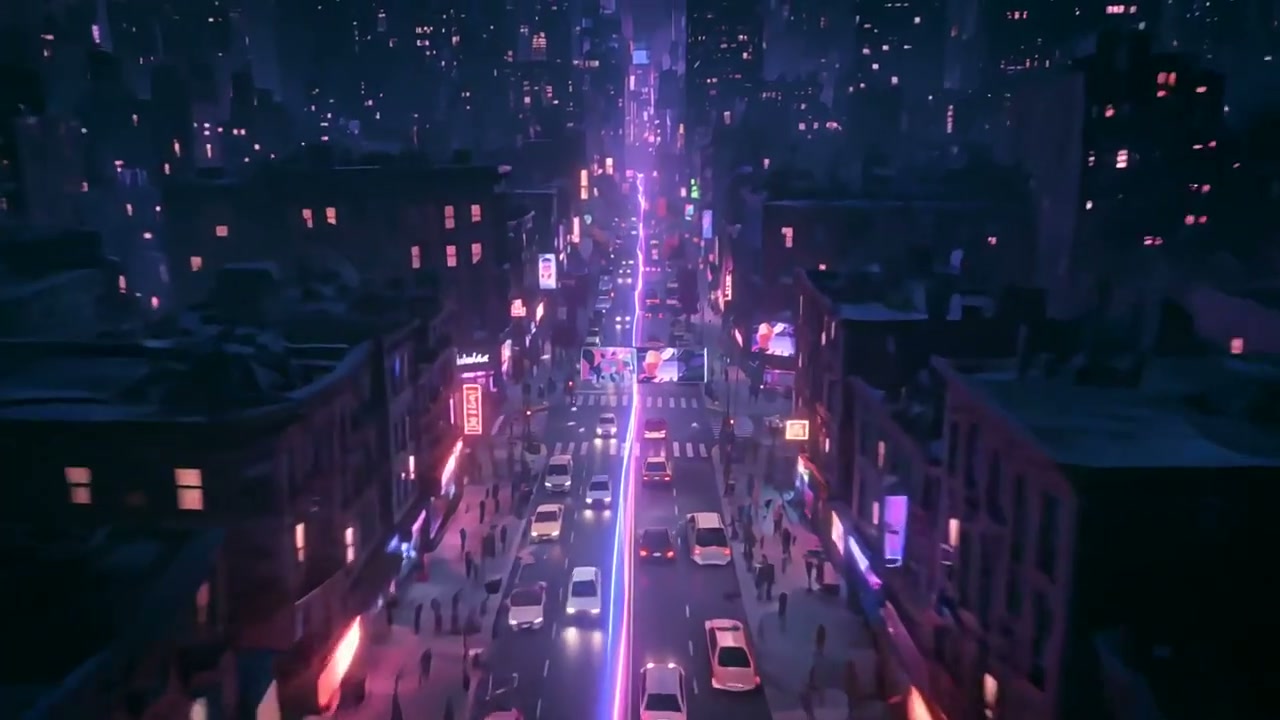
Before you generate anything, you should have a storyboard, even a rough one. It does not need to be a polished set of drawings. A mood board with notes on sequence and timing is enough. The question is whether the generated clips match that sequence in tone, framing, and pacing. Generative tools sometimes produce beautiful shots that do not connect to each other. A clip that looks great in isolation can break the narrative flow. Watch the rough cut without sound first. Does the visual story hold? If the storyboard shows a close-up at a certain moment and the tool gives you a wide shot, flag it. You can fix it by adjusting the prompt or feeding a reference clip that shows the framing you need.
Product image consistency across shots
If your campaign includes a product image, it is easy for generative tools to change its appearance between scenes. The shape, colour, label orientation, or packaging details might shift slightly with each generation. When you cut those shots together, the product can appear to change from one angle to the next. That confuses viewers and undermines trust. The fix is to use a single reference image of the product and include it in every relevant prompt, or render the product shots as a separate pass and composite them later. Check every frame where the product appears. If the logo is not sharp or the colour is off, regenerate with a stronger reference.
Audio and voiceover sync
Generative video tools often produce clips without audio, or they add generic soundtracks. If your campaign has a voiceover or a specific music track, you need to check timing. A three-second clip might need to hold for five seconds to match the voiceover. A beat drop in the music might require a cut that aligns with a visual change. Do not assume the tool will respect audio cues. Export the clips, bring them into a timeline, and verify that the pacing works with your audio layer. Adjust clip duration by regenerating with a different length parameter or by slowing the clip in post, if the tool allows that.
Creative testing before full rollout
One of the advantages of generative tools is that you can produce multiple variations quickly. Use that speed for creative testing. Generate two or three versions of the same campaign video, changing one variable at a time: the opening shot, the colour grade, the background music. Show them to a small internal group or to a test audience. Ask them which version feels most on-brand and most engaging. The feedback might reveal that the version you liked internally does not connect with viewers. Testing before full rollout saves the cost of pulling a campaign that already went live. It also gives you data to feed back into the prompt design for the next project.
When you are evaluating which generative tool fits your workflow, the happy wan price is one factor to consider, but it should not override the importance of output quality and brand alignment. A lower-cost tool that requires heavy manual correction can end up costing more in time than a tool that delivers consistent results from the start. The happy wan price matters, but so does the speed at which you can go from prompt to final cut without rework.
Resolution and format for the target platform
A campaign video that looks crisp on a desktop monitor might look soft on a mobile feed. Generative tools often default to a standard resolution, but your campaign might need vertical video for TikTok, a square format for Instagram, or 16:9 for YouTube. Check the output dimensions before you start. If the tool does not support the exact format you need, you may have to crop or upscale, which can degrade quality. Some tools let you set aspect ratio and resolution in the prompt. Use that. If you are delivering social video across multiple platforms, generate separate versions for each format rather than trying to fit one cut everywhere.
Visual brief against the final render
By the time you have a near-final render, go back to the original visual brief. A visual brief is the document that describes the campaign concept: the mood, the colour story, the key emotions, the call to action. Compare the render against that brief point by point. Does the lighting feel like what you described? Does the pacing match the energy you wanted? It is easy to get attached to a sequence that looks impressive but does not serve the brief. If something is off, note exactly what changed and adjust the prompt or the reference images. Sometimes the fix is as simple as adding a descriptive word like "warm" or "soft" to the prompt.
Final pass for brand safety
Before you export the final version, do a frame-by-frame scan for anything that could cause a problem: a logo that appears in the background without permission, a face that resembles a real person without a release, a text overlay that uses a trademarked term incorrectly. Generative tools can produce unexpected elements. A background object might look like a competitor's product. A pattern on a wall might resemble a protected design. These issues are rare, but they happen. A quick visual pass catches them before the video goes public. If you find something, regenerate that segment with a more specific prompt that excludes the unwanted element.

The checklist above is not exhaustive, but it covers the most common points where generative campaigns go off track. Each check is a chance to catch a small problem before it becomes a big one. And because generative tools let you iterate fast, fixing those problems rarely requires a full restart. A prompt tweak, a new reference clip, or a different setting can often get you back on course within minutes. That speed is valuable, but only if you pair it with the discipline to verify every detail before you hit publish.